
Join your team with a code
Quick answer
Go to scramblesync.com/play on your phone, type in your team code, and tap Start scoring. That's it, no download, no account. Your team code is printed on your cart sign or handed out at registration.
On this page
Overview
Golfers score on their own phone in the web browser. All you need is your team code from the cart sign, no app and no account.
Who this is for
Golfers on event day. Organizers can send this link to their players.
What you need
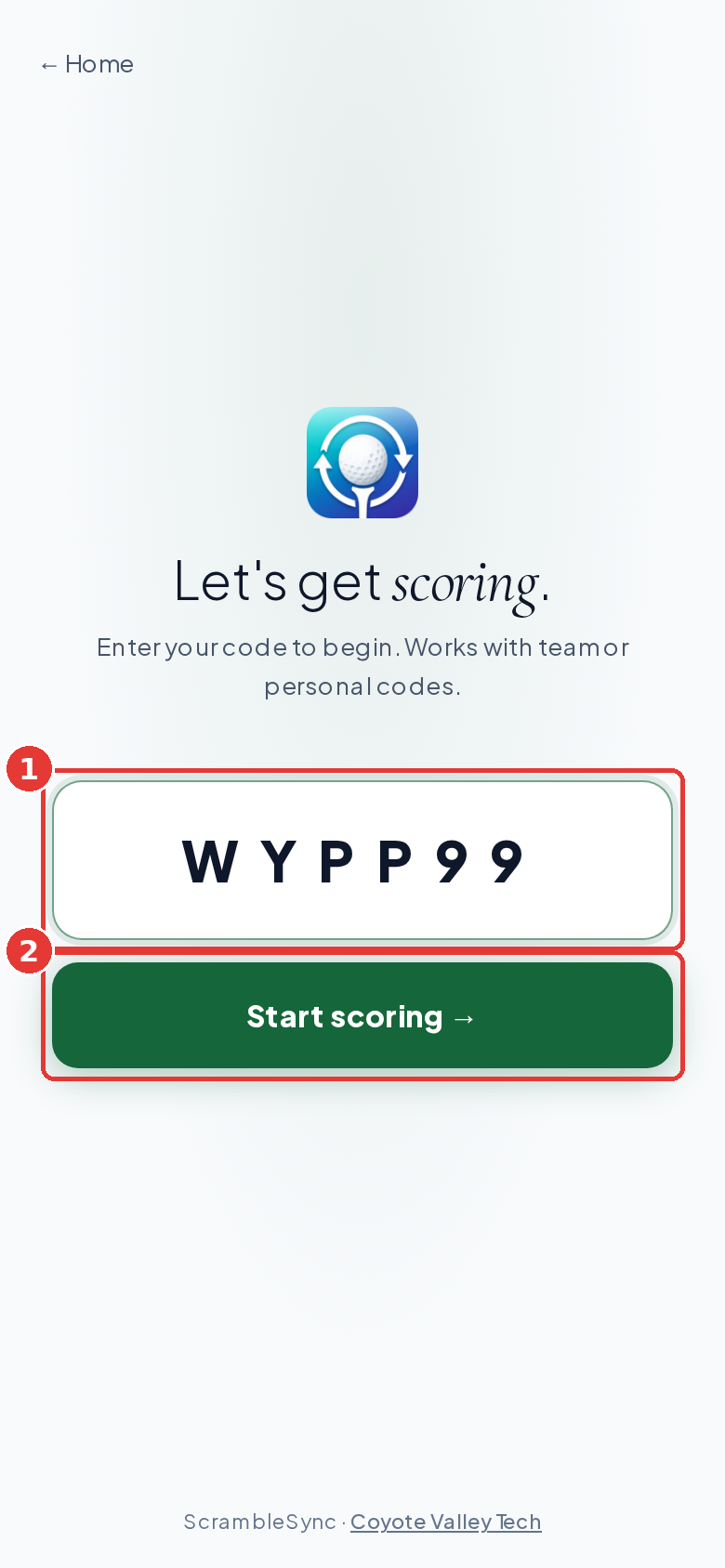
Just your phone and your team code. The code is usually printed on the cart sign at your assigned golf cart. If you can't find it, ask the event staff at the registration table.
How to join
Open scramblesync.com/play in your phone's browser
No app to download. Works in Safari, Chrome, or any browser. The join screen says Enter your code to begin. If your phone opens a team from an old session, tap Wrong team? at the top, then Leave session on the Leave this session? sheet. That clears the old code so you can type the new one.
Type your team code and tap Start scoring →
The code is 6 characters (letters and numbers, like ABC123). It auto-capitalizes as you type. If you get an error, double-check the code with your event staff.
Scan the QR code instead (optional)
Your cart sign has a QR code. Scan it with your phone camera and it opens scramblesync.com/play already loaded with your team, no typing needed.
Pick your name (if asked)
In scramble format, one person scores for the whole team. You may be asked to confirm you're the scorekeeper. In best-ball, shamble or individual formats, golfers with a personal link score their own card. A score keeper with the team code picks each golfer at the top of the card and scores for them.
Team code vs. personal code
In a scramble, there is one team code shared by the whole group. In best-ball, shamble or individual formats, a golfer can get a personal link for their own card, or one score keeper can use the team code and score each golfer. The code entry screen works the same way for both.
The welcome guide, round summary and feedback
A few short screens show up around your round. None of them need an account.
- Welcome guide: the first time a phone opens a team's scorecard, a short set of slides appears. Tap Next and Back to move through them, or Skip to leave. The last slide has a Start button. The slides cover tapping your strokes ('Welcome to your round'), Leaderboard and Games (only if your organizer turned them on), 'Updates from the organizer' in the Messages tab, and 'Finishing up', where the score keeper reviews and signs the card. That phone won't show the guide again for that code.
- Round summary: tap the 'View card' button on the scorecard (it shows how many holes you've scored, like 4/18) to see your total, your score to par, the front nine and back nine, and every hole. Tap '← Back to scoring' to return. Once every hole is scored, the same screen has the sign-off step. See Signing your card.
- Feedback: after the card is signed, you may see 'How did it go?' with a box for what worked and what didn't. It needs at least 50 characters, and the email box is optional. Tap Send feedback, or No thanks to dismiss it. Either way, it won't ask again on that phone for that code.
Tips
- Scan the QR code on your cart sign and you skip the typing.
- If your event uses card swap, use your phone's web browser, not the App Store app.
Troubleshooting
| If you see this | Try this |
|---|---|
| 'Code not found: check your code and try again.' | Check the code on your cart sign. Letters and numbers only, about 6 characters. |
| It sits on 'Loading your scorecard…' | Check your signal. Move toward the clubhouse for a moment, or turn Wi-Fi off and use cell data. |
| Wrong team showed up | Tap Wrong team? at the top of the scorecard (Not you? if you used a personal code), then tap Leave session on the Leave this session? sheet (or tap Stay to cancel). The code box is empty again, so type the right code. |
Frequently asked questions
I don't have a code. What do I do?
Ask the event staff at registration or check your cart sign. If you're playing a per-player format, you should have received a personal code by email or from the organizer.
The code isn't working.
Code not found: check your code and try again. Type it exactly as printed on your cart sign (case doesn't matter). If it still fails, ask the organizer, the team may not be set up yet or the event may not have started.
Can more than one person on our team use the same code?
Yes, in scramble format the whole team can open the scorecard on their own phones using the same team code. Only one person needs to actually enter scores.
Do I need to create an account?
No. Golfers never need an account or a password. Just the code.
Half my golfers have Samsung phones. Can they still keep score?
Yes. Samsung and other Android phones keep score in the phone's web browser at scramblesync.com/play, the same as iPhones. Type the team code and tap Start scoring. There is no Android app to download from Google Play.
I closed my browser in the middle of the round. Do I have to start over?
No. Open scramblesync.com/play again, type the same team code, and tap Start scoring. Your scorecard comes back with the scores that were already sent.
How do I switch my phone to a different team code?
Tap Wrong team? at the top of the scorecard (Not you? if you joined with a personal code), then tap Leave session. We clear the old code from this phone and the code box is empty, so type the new code and tap Start scoring. To stay on your card, tap Stay.