
Scan a paper scorecard with your phone
Quick answer
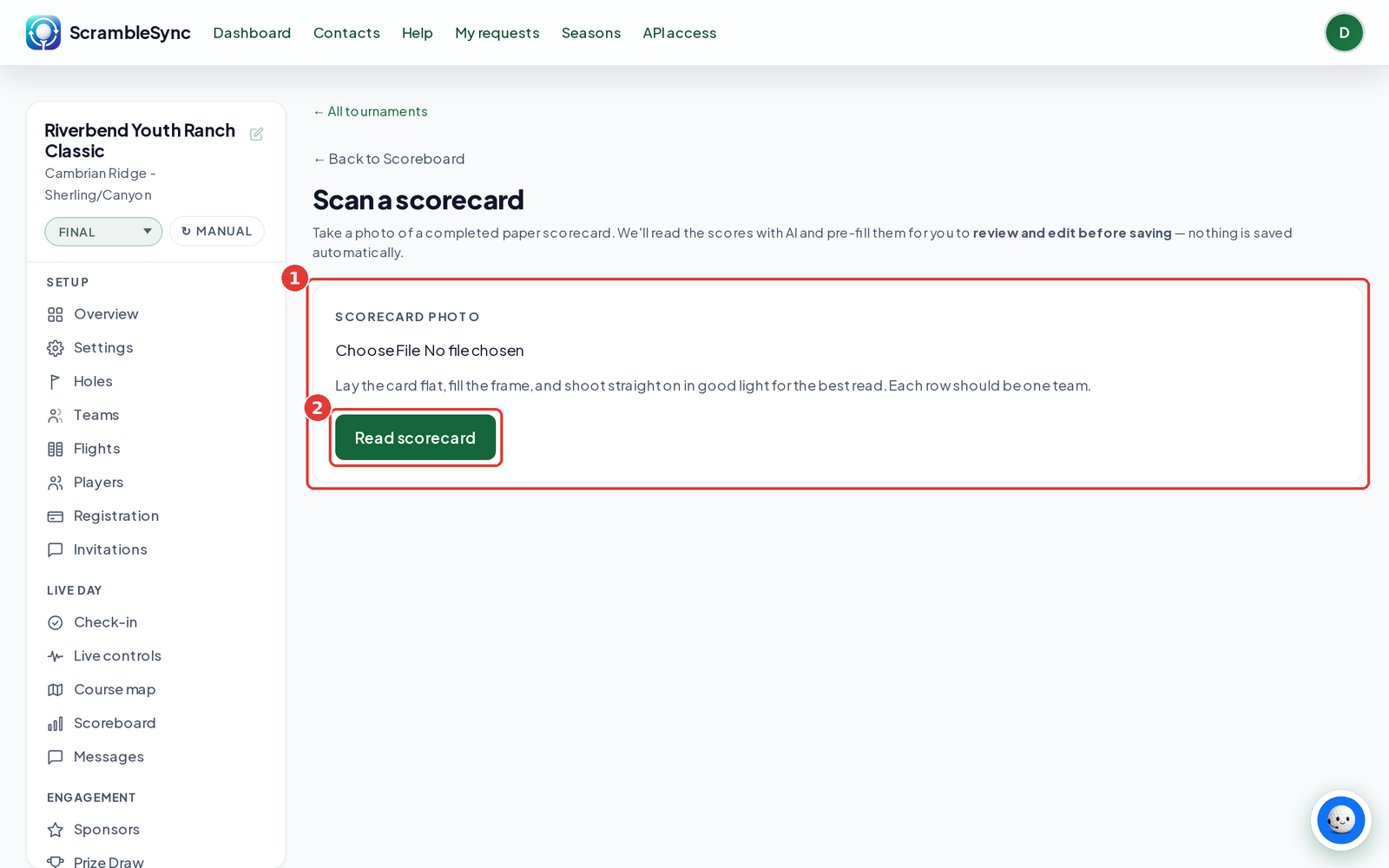
Open your event, go to Scoreboard, and click Scan a scorecard. Take or choose a photo of the card, click Read scorecard, then check the highlighted scores, fix any that are wrong, and click Save scores. Nothing is saved until you click Save.
On this page
Overview
When a team hands in a paper card, you can skip the typing. The scanner reads each row, matches it to a team, and fills in the scores for you to check.
Who this is for
Organizers and staff with Scramble AI turned on. If you don't use Scramble AI, enter paper scores with Enter a team score by hand on the Scoreboard.
Scan a card
Open Scoreboard and click Scan a scorecard
The Scan a scorecard page opens.
Take a clear photo
Lay the card flat, fill the frame, and shoot straight on in good light. Each row should be one team, or one golfer if your event scores individuals.
Click Read scorecard
You'll see 'Scorecard read. Review the scores below before saving.'
Check the highlighted scores
Anything we weren't sure about is highlighted. Fix numbers and team matches as needed.
Click Save scores
The scores go on the leaderboard.
Tips
- Write clearly in the boxes and avoid crossing out. Neat cards read best.
- If a row is hard to read, type that team's score by hand instead.
Troubleshooting
| If you see this | Try this |
|---|---|
| 'Add teams first, then you can scan their scorecards' | Add teams on the Teams tab. |
| A team was matched wrong | Pick the right team in the review list before saving. |
| The page isn't available | Scramble AI isn't on for your organization. Use Enter a team score by hand. |
Frequently asked questions
Is anything saved automatically?
No. You review and edit before saving.
Does it work for signed cards?
Signed cards are locked. Reopen the card first.