
Get paid: connect your bank with Stripe
Quick answer
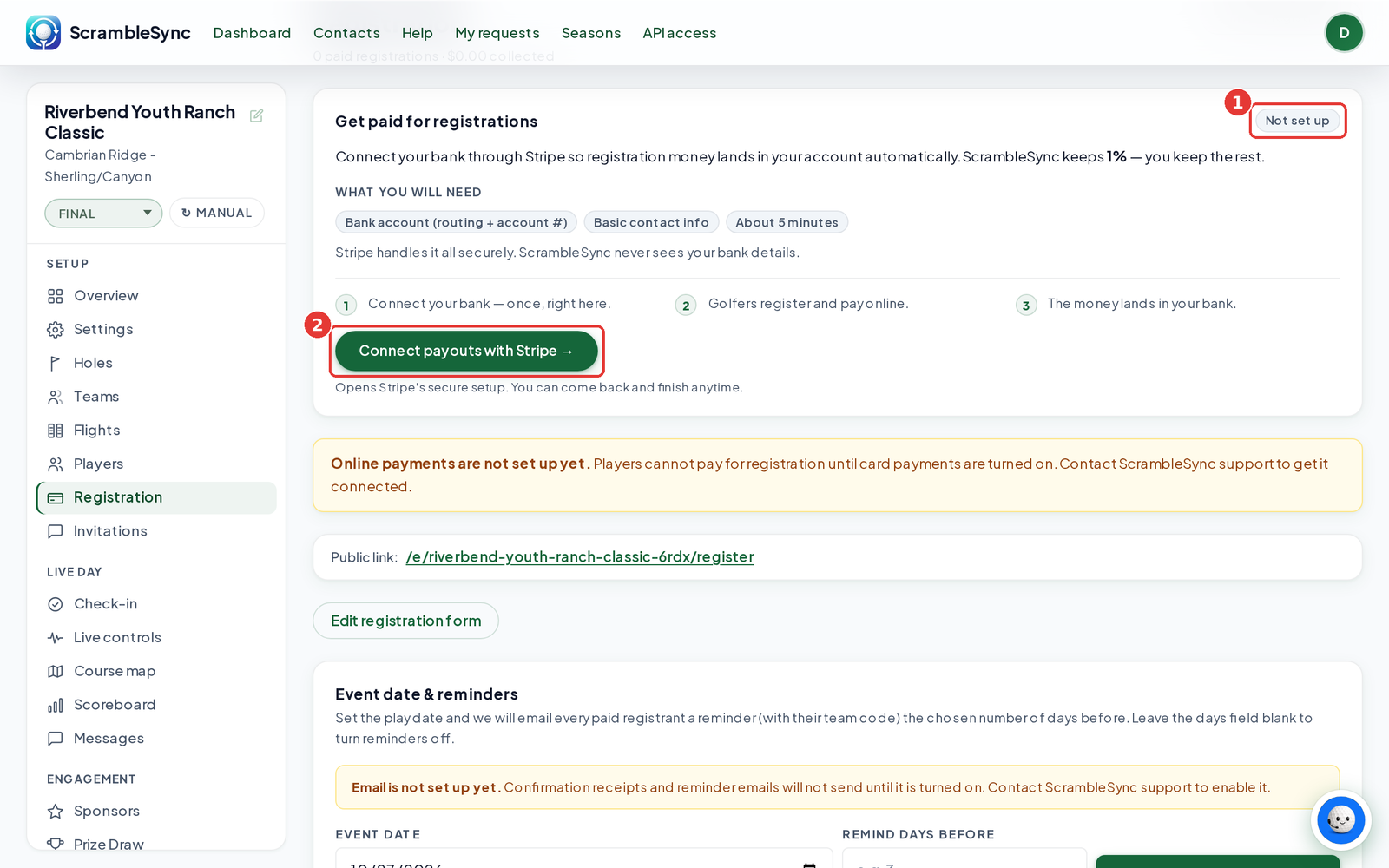
Open your event, go to Registration, and find the Get paid for registrations card. Click Connect payouts with Stripe, finish Stripe's secure setup (bank account and basic contact info, about 5 minutes), and come back. When the badge says Active, online payments turn on. ScrambleSync keeps 1% and you keep the rest.
On this page
Overview
Online registration and online donations pay out straight to your organization's bank account through Stripe Connect. You connect once, and every event in your organization uses the same account. Stripe handles the bank details securely, so we never see them.
Who this is for
Organizers who want to take money online: team entries, single spots, add-ons, and donations. Admins and managers can start the setup. If your event is free, you can skip this.
Connect payouts
Open Registration
Open your event and click Registration in the sidebar. If online registration is off, click Enable online registration first.
Find Get paid for registrations
The card shows a badge with your status. A new organization shows Not set up.
Click Connect payouts with Stripe
Stripe's secure setup opens. Have your bank routing and account numbers and basic contact info ready.
Finish Stripe's steps
You can stop and come back any time. When you return, the button says Finish Stripe setup.
Wait for Active
After you finish, the badge shows Under review while Stripe checks your details. It usually switches to Active within a minute.
What each status means
| Badge | What it means | What to do |
|---|---|---|
| Not set up | No Stripe account is connected yet. | Click Connect payouts with Stripe. |
| Almost there | You started Stripe's setup but didn't finish. | Click Finish Stripe setup. |
| Under review | Stripe is checking your details. | Wait, or click Add more info in Stripe if Stripe asked for something. |
| Active | Payments are on and money goes to your bank. | Nothing. Use Open your Stripe dashboard to see payouts and your balance. |
Fees and payouts
- ScrambleSync keeps 1% of each online registration and donation. You keep the rest, less Stripe's own card processing fee.
- Stripe pays out to your bank on its normal schedule. The card shows how much has been collected so far.
- Click Open your Stripe dashboard (payouts & balance) on the Active card to see payouts, refunds, and your balance in Stripe.
Tips
- Connect a few days before you open registration, so Stripe has time to review.
- Use the organization's bank account, not a personal one, so your treasurer can reconcile it.
- Your plan subscription is billed separately and doesn't need this connection.
Troubleshooting
| If you see this | Try this |
|---|---|
| 'That secure setup link expired' | Stripe links time out. Click the button again to pick up where you left off. |
| Golfers see 'Online payment isn't set up for this event yet' | Your status isn't Active yet. Finish Stripe's setup or wait for the review. |
| 'This event is not linked to an organization yet' | Email [email protected] and we'll connect it. |
| Stuck on Under review | Click Add more info in Stripe. Stripe may need one more document. |
Frequently asked questions
Do I need to connect Stripe for every event?
No. The connection belongs to your organization, so every event you run uses it.
Does ScrambleSync see my bank details?
No. You enter them in Stripe's secure setup, and Stripe keeps them.
What does it cost?
We keep 1% of online registrations and donations on the Pro plan to cover platform upkeep and the payment integration. Stripe also charges its standard card processing fee.
Is this the same as paying for my ScrambleSync plan?
No. Your plan is billed to your card separately. This connection is only for money coming in from golfers and donors.
Who can set it up?
Admins and managers on your team.