
Live controls: move teams, remove teams, and broadcast
Quick answer
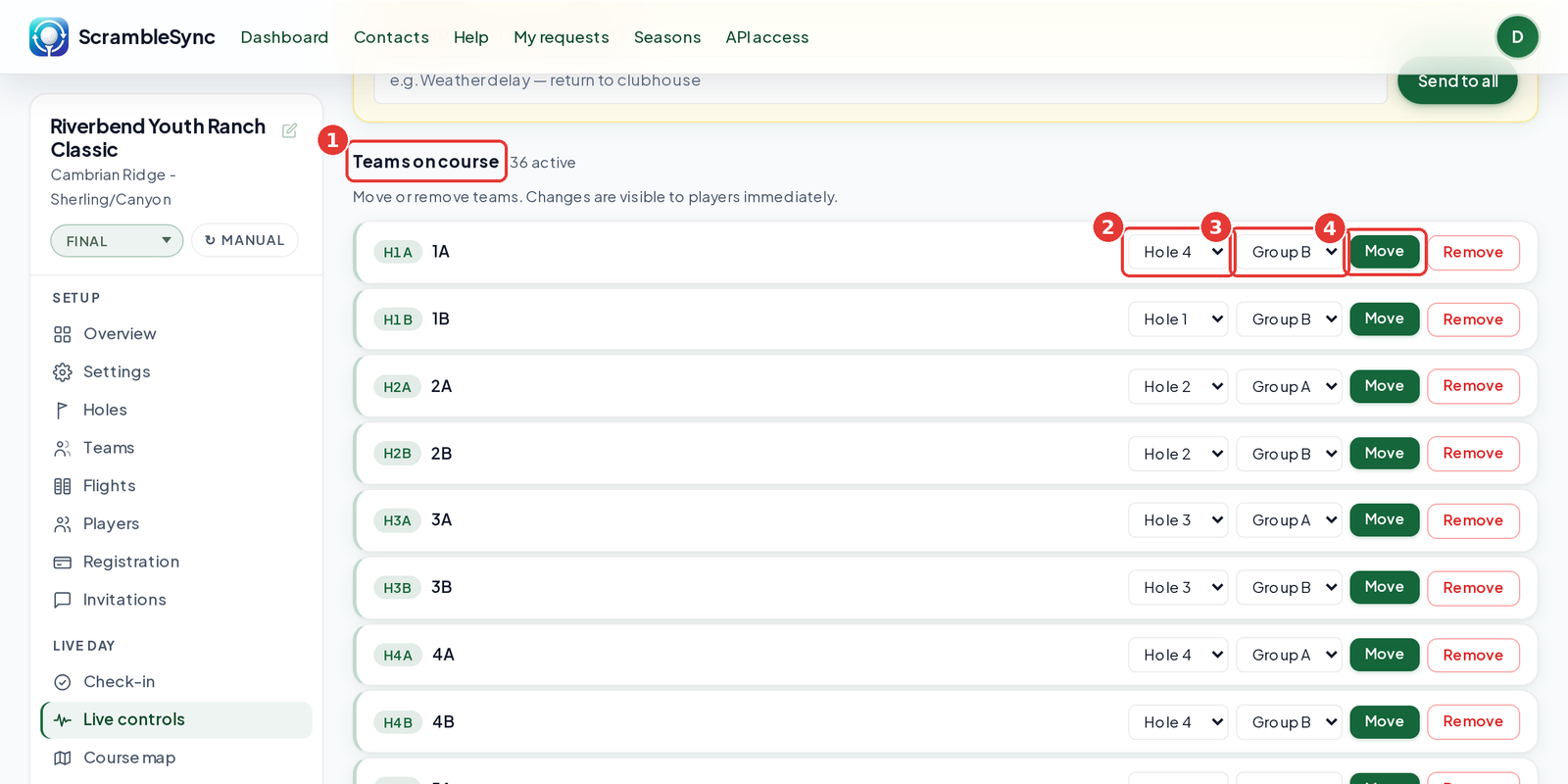
Open your event and click Live controls. Under Teams on course, pick a new Hole and Group (A or B) for the team, then click Move. The change shows on golfers' phones right away, even mid-round. Use Send to all at the top to message every golfer at once.
On this page
Overview
Live controls is your event-day control panel. It lists every team on the course with its starting hole and group, lets you move a team to a different hole or group, remove a team that left, and send one message to every golfer's phone. The page refreshes itself every 30 seconds.
Who this is for
Organizers and staff with edit access on event day. Check-in staff don't see this tab.
Move a team to a different starting hole
Teams swap holes all the time on event day: a group shows up late, two foursomes want to play together, or a hole is closed. Here is how we move one.
Open Live controls
Open your event and click Live controls in the sidebar, under Live day. The header shows how many teams are on the course.
Find the team under Teams on course
Each team has a badge with its current hole and group (for example H1A means hole 1, group A), then the team name.
Pick the new Hole
Use the Hole list next to the team to choose the starting hole you want.
Pick the Group
Choose Group A or Group B. A tees off first on that hole and B goes right after.
Click Move
The team moves right away and golfers see the new hole on their phones. There is no drag and drop, so each move is one team at a time.
Remove a team
Click Remove next to the team
You'll see a warning that the team and all their scores will be deleted permanently.
Confirm
The team disappears from the list, the leaderboard and the golfer pages. Its join code stops working.
Send a message to every golfer
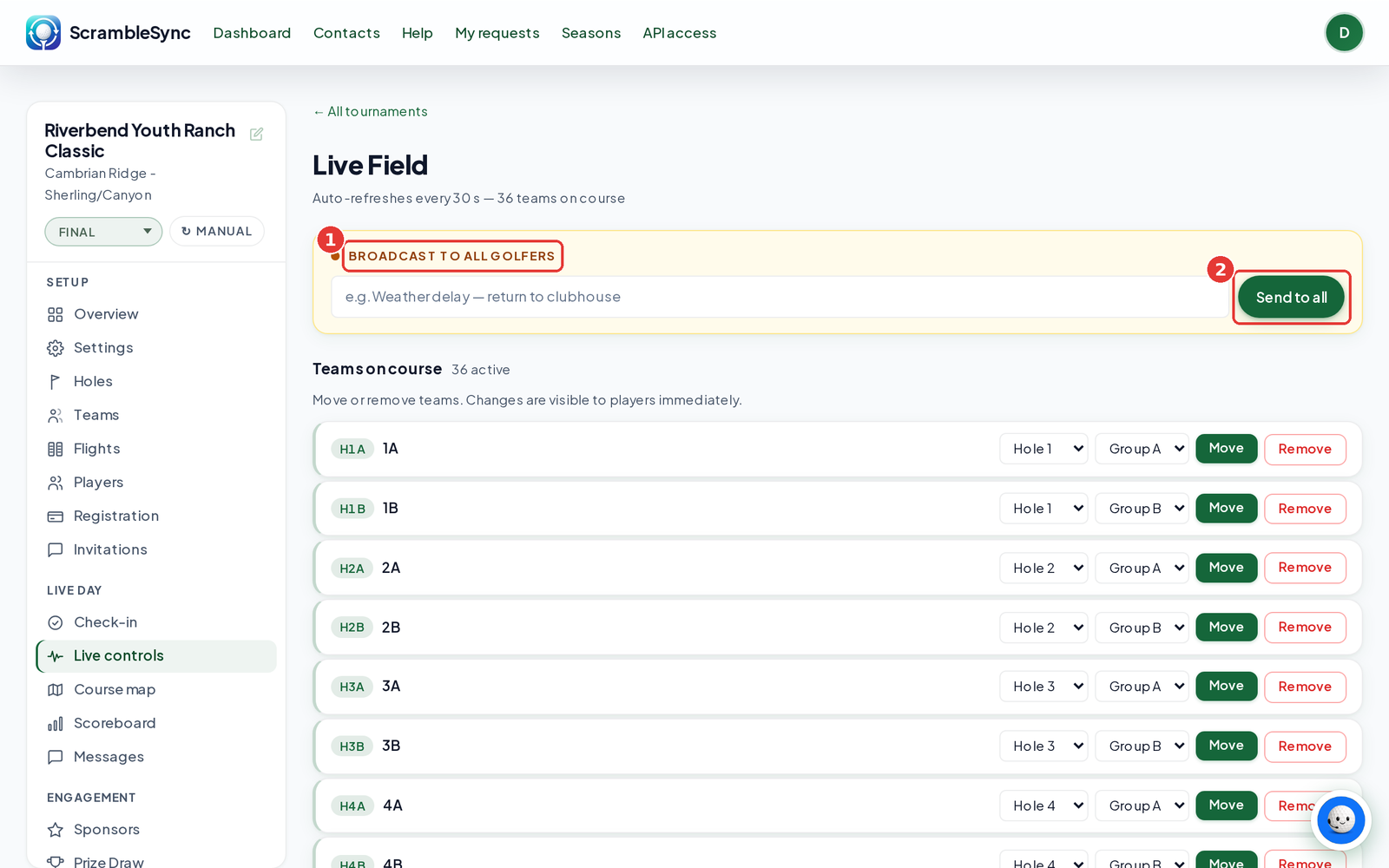
Type your message under Broadcast to all golfers
Keep it short, for example 'Lightning delay. Head to the clubhouse.'
Click Send to all
The message shows up on every team's scorecard.
Tips
- Move teams before you print the Tee Sheet and Cart Signs if you can, so the paper matches the app.
- If two teams end up on the same hole and group, change one of them to the other group so they don't both show as first off.
- Live controls refreshes every 30 seconds. If you just made a change on another device, wait a moment or refresh the page.
- Messages are also on the Messages tab, where you can see what teams sent you.
Troubleshooting
| If you see this | Try this |
|---|---|
| I don't see the Live controls tab | It's hidden for check-in staff. Ask an admin or manager to change your role, or have them make the move. |
| 'Signed cards can't be removed' | Reopen the team's card from the Teams tab or the Scoreboard first, then remove it. |
| 'That team was already removed' | Someone else removed it a moment ago. Refresh to see the current field. |
| The card-swap pair broke after a move | That's expected. Moving a card-swap team clears its pairing. Pair it again on the Teams tab. |
Frequently asked questions
Can I move a team after they've started scoring?
Yes. Moving works mid-play and their scores stay with them.
Can I drag teams between holes?
No. Pick the Hole and Group for the team, then click Move.
Does moving a team change the countback for ties?
No. Countback uses each team's own card holes, so a new starting hole doesn't change how ties are broken.
Can I undo a removal?
No. Removing deletes the team and its scores. If you removed one by mistake, add the team again on the Teams tab and re-enter scores.